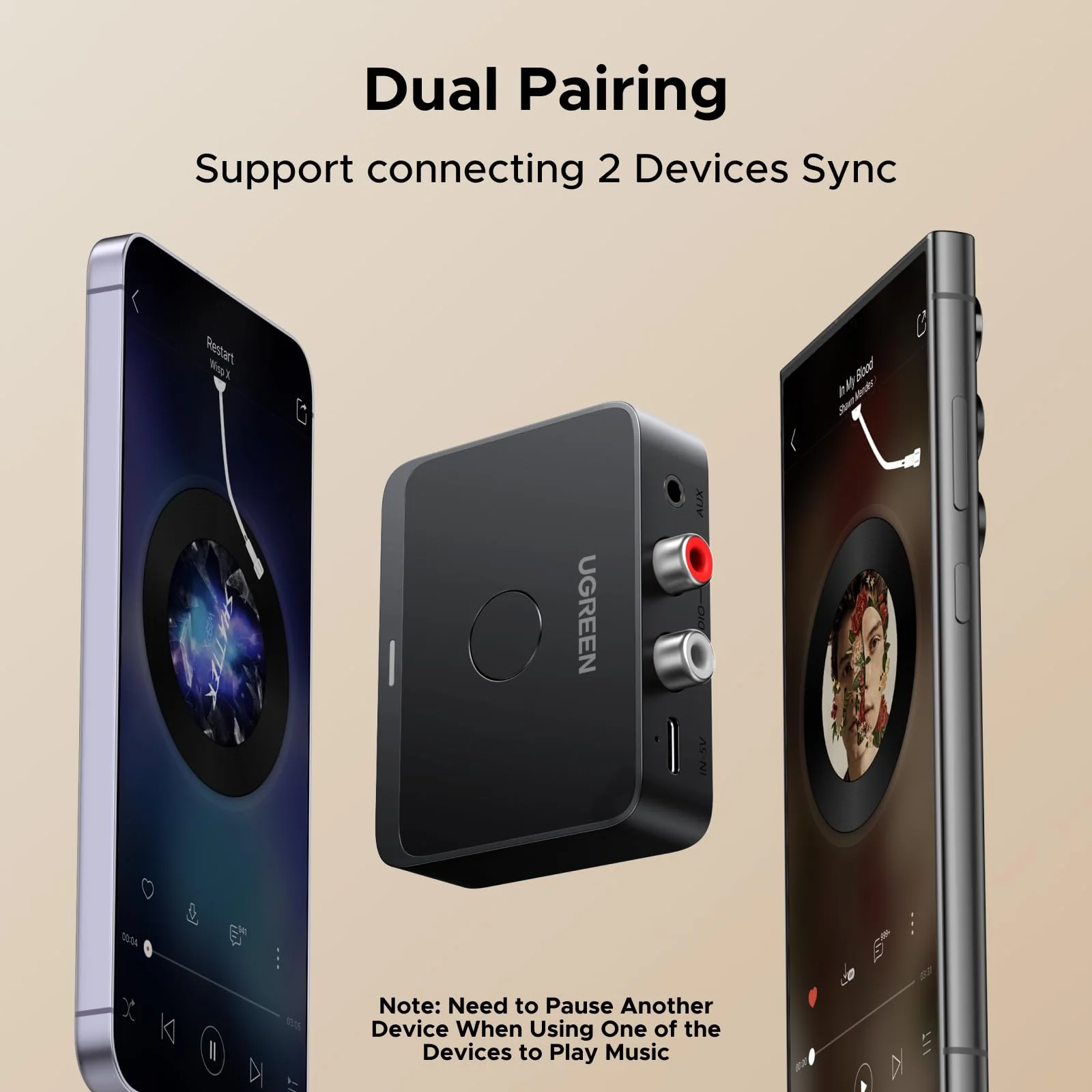
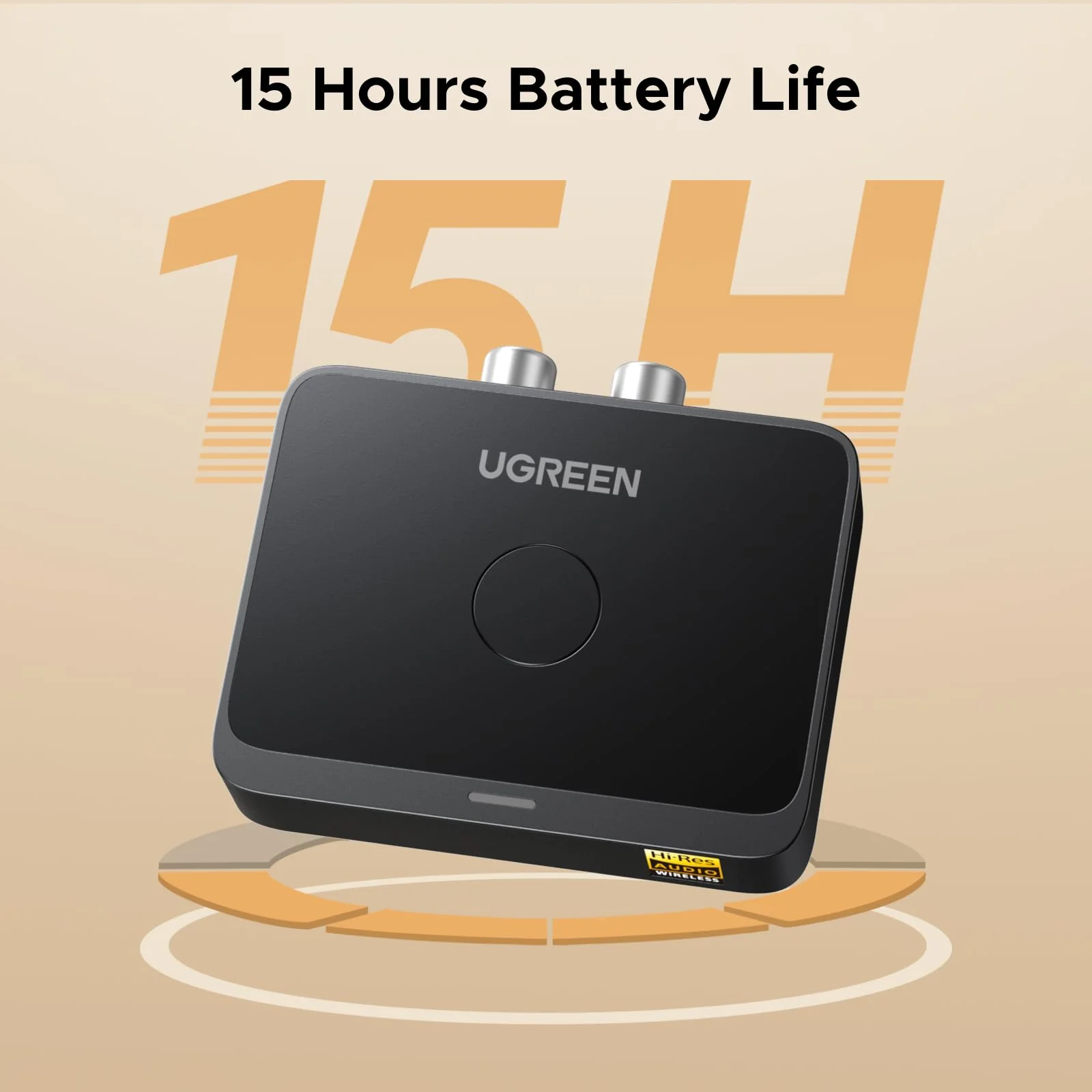
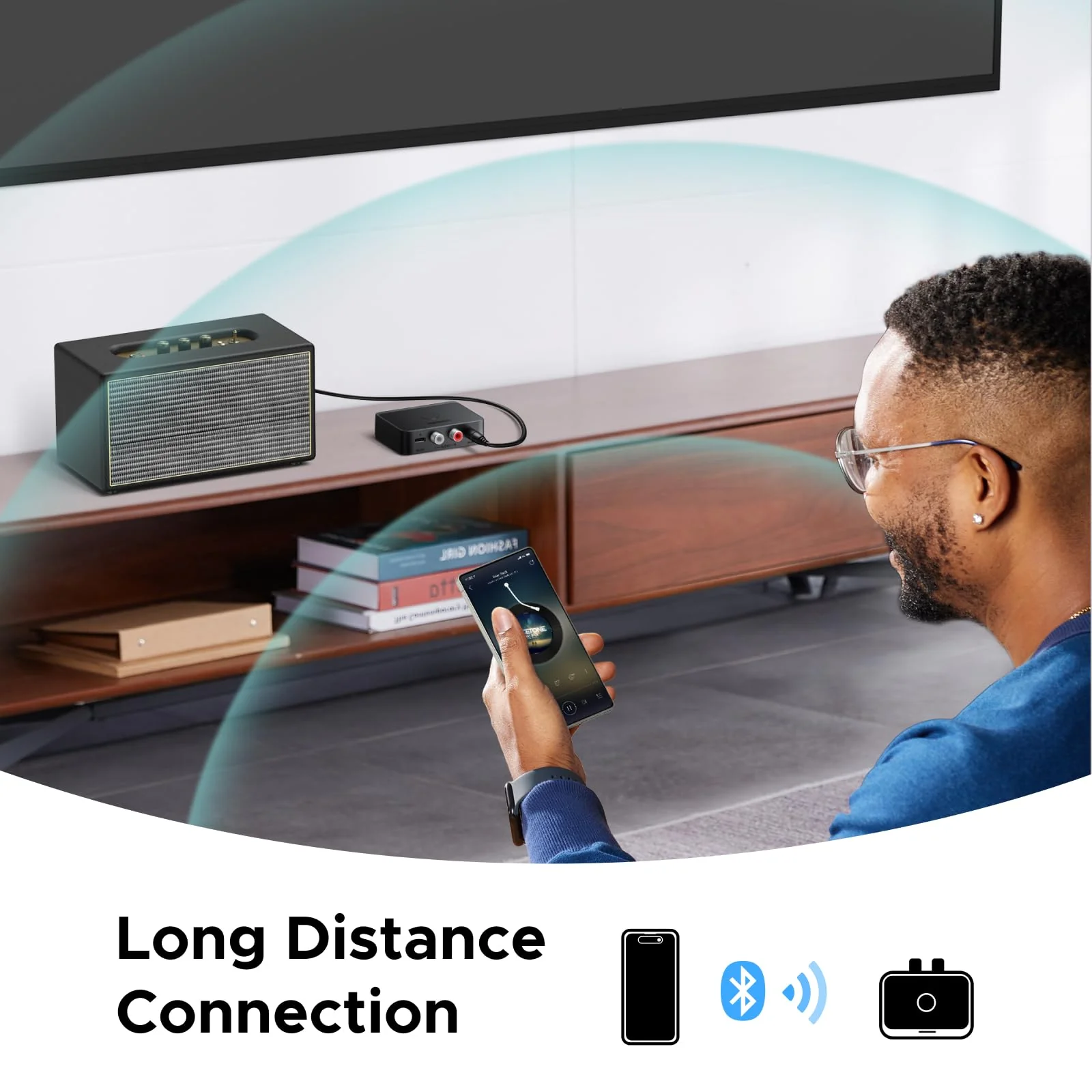
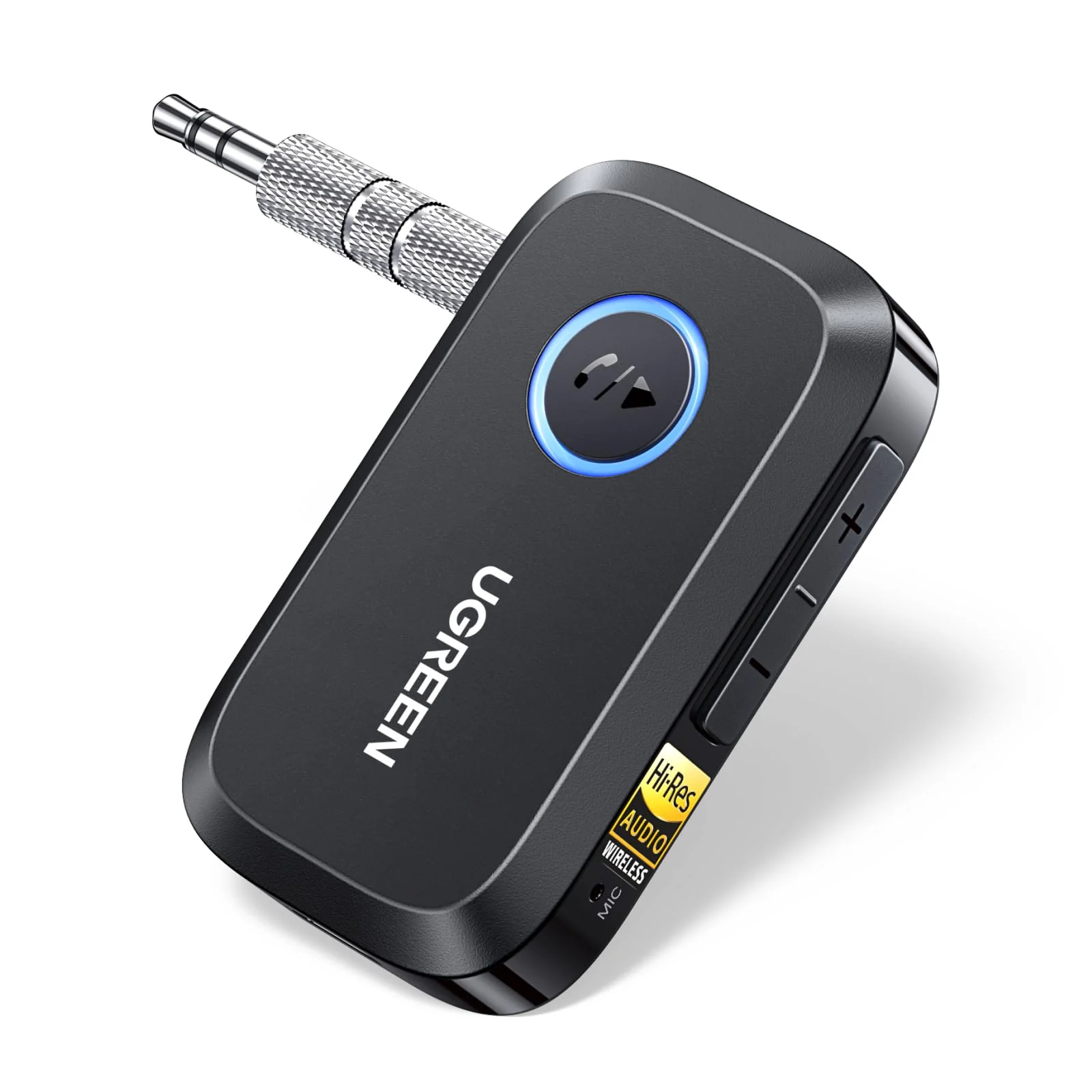
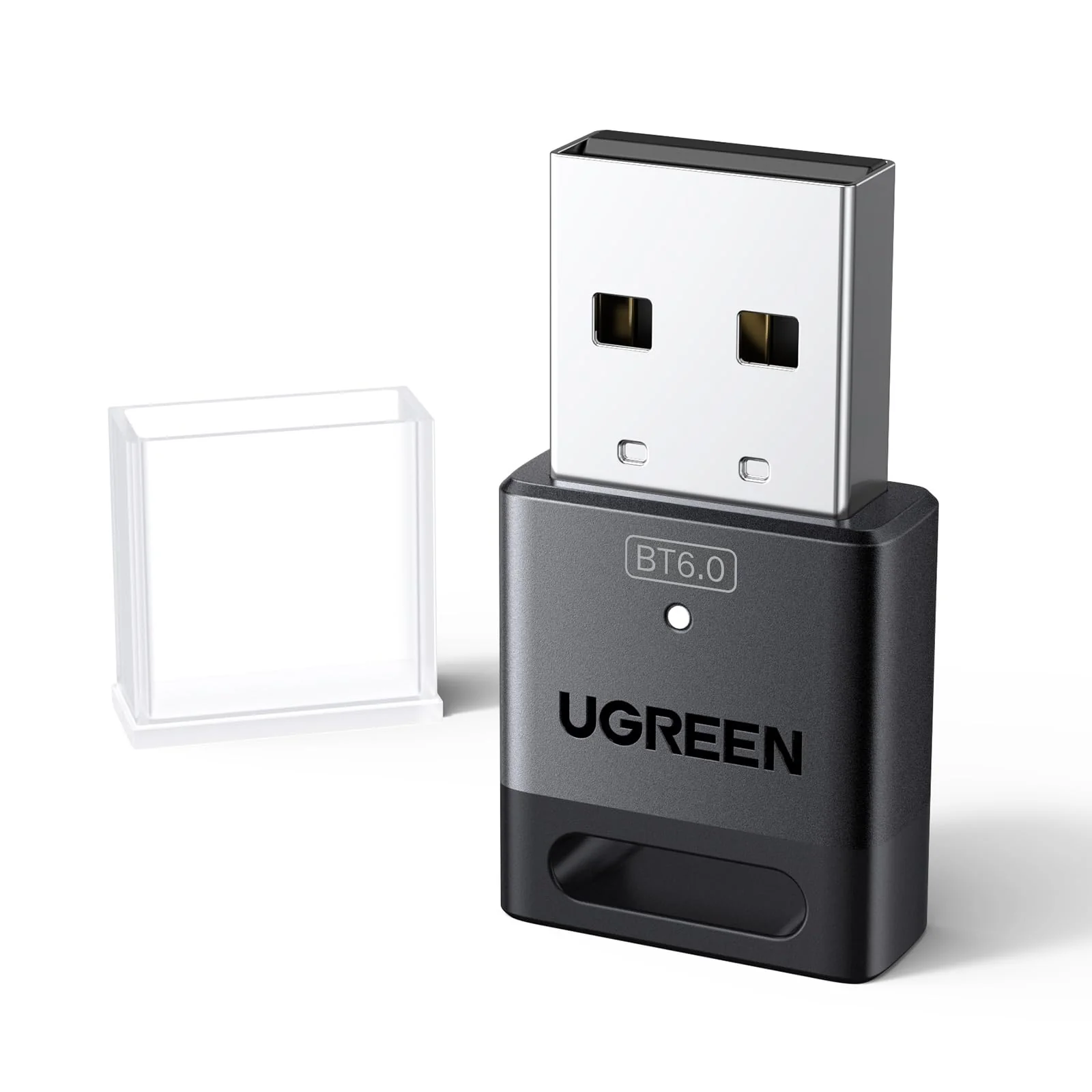
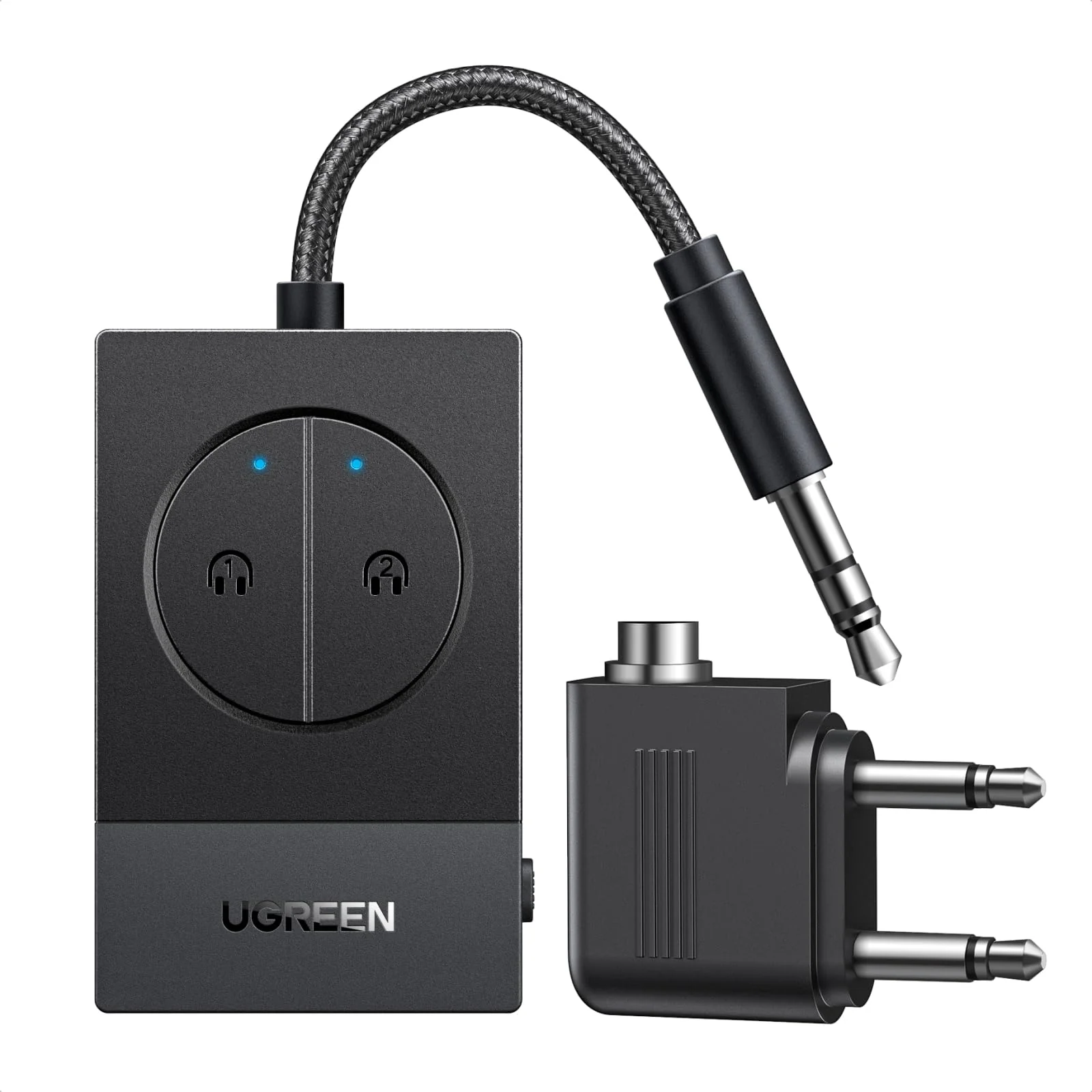
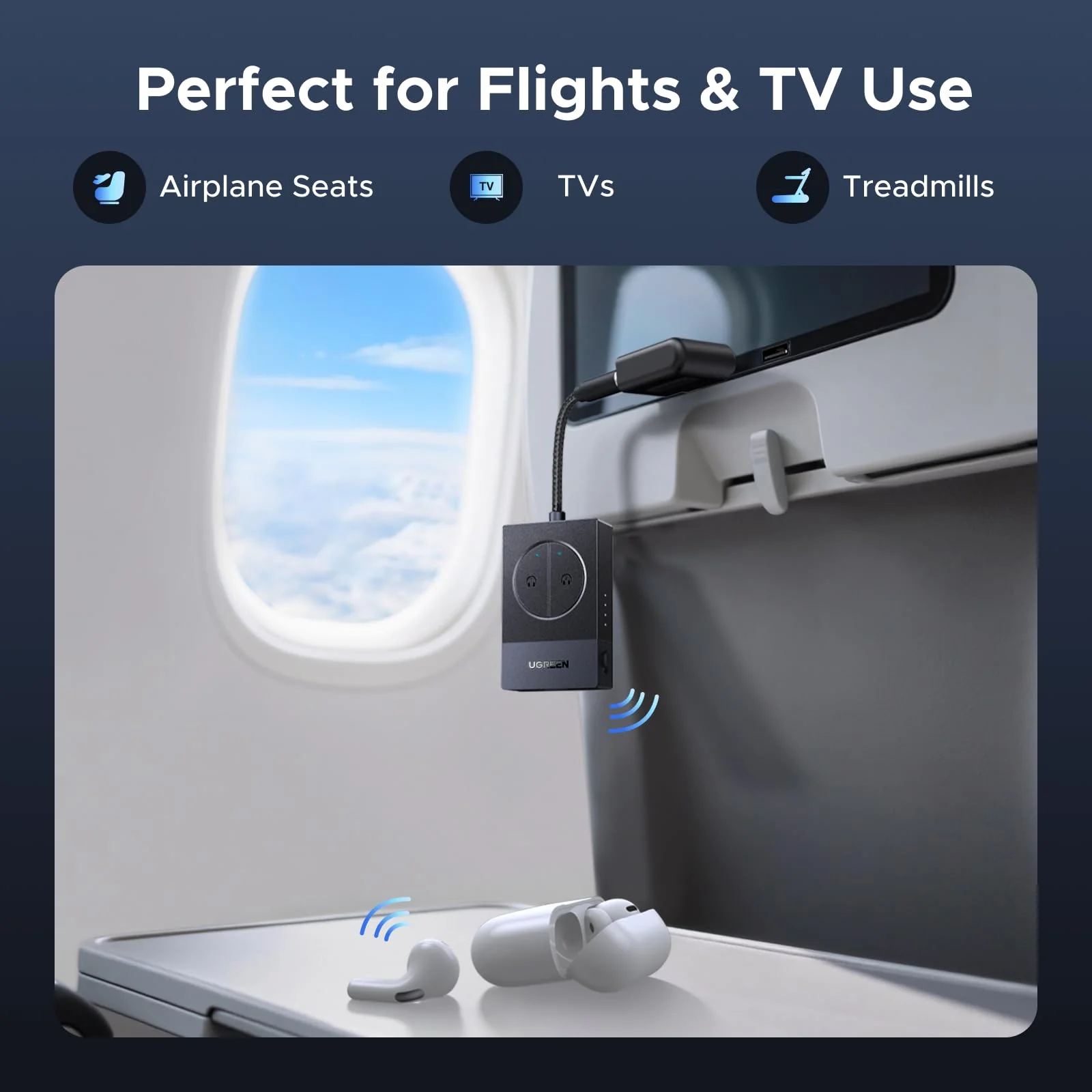
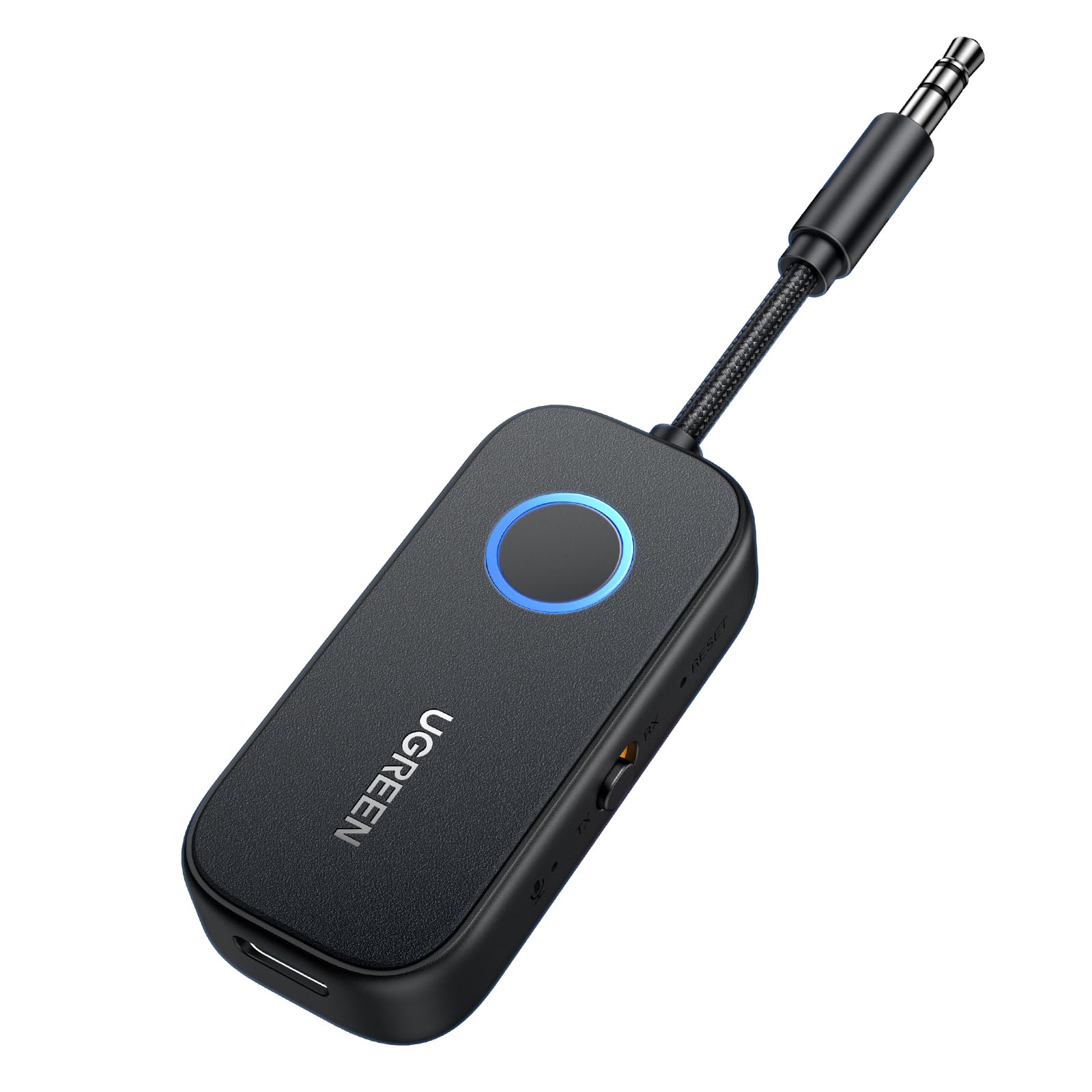
UGREEN Bluetooth 6.0 Receiver with LDAC Hi-Res Audio, Bluetooth Audio Adapter for Hi-Fi, 15H Playtime, Long Range, Dual Pairing, Wireless Adapter for Speakers/Home Stereo
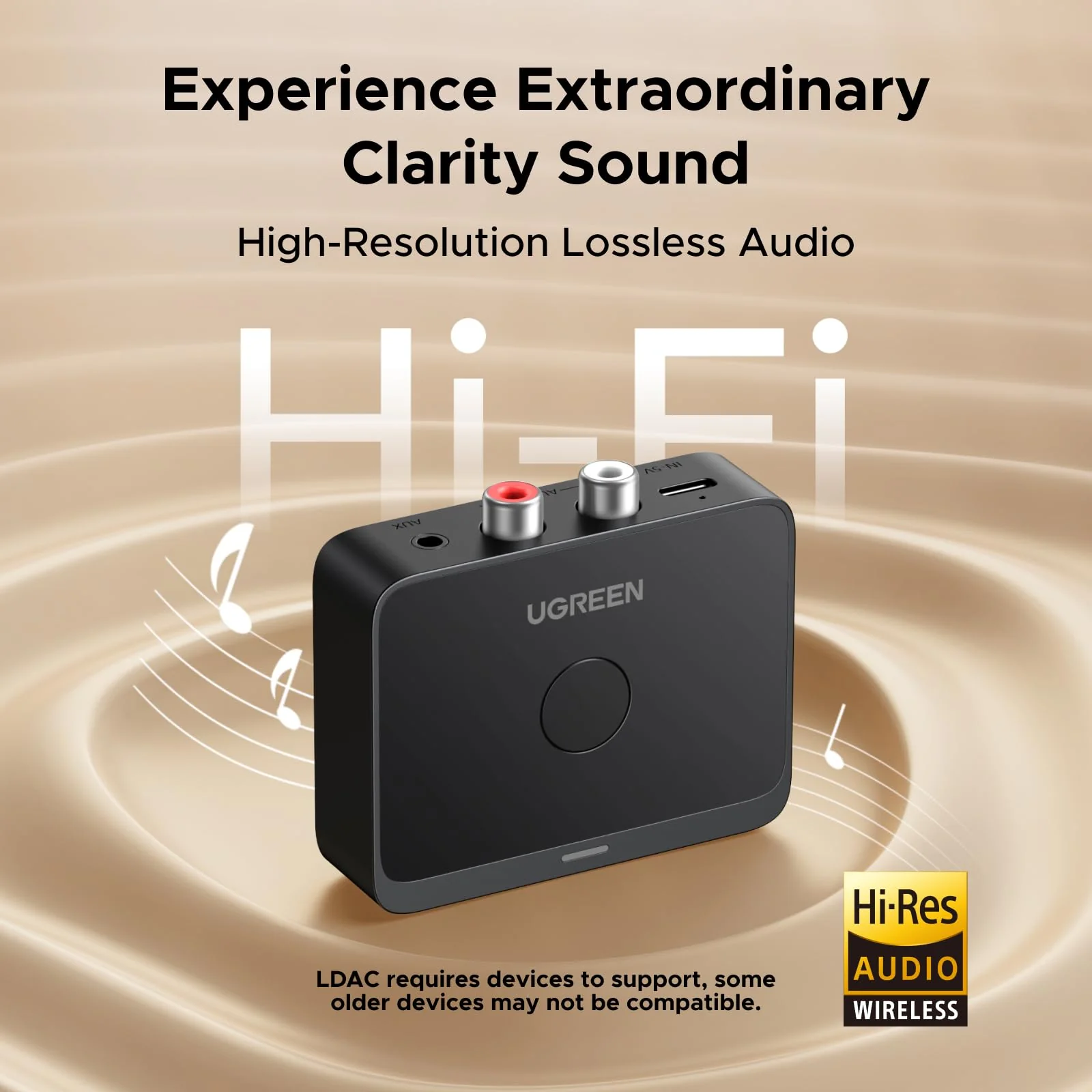
LDAC Hi-Res Audio
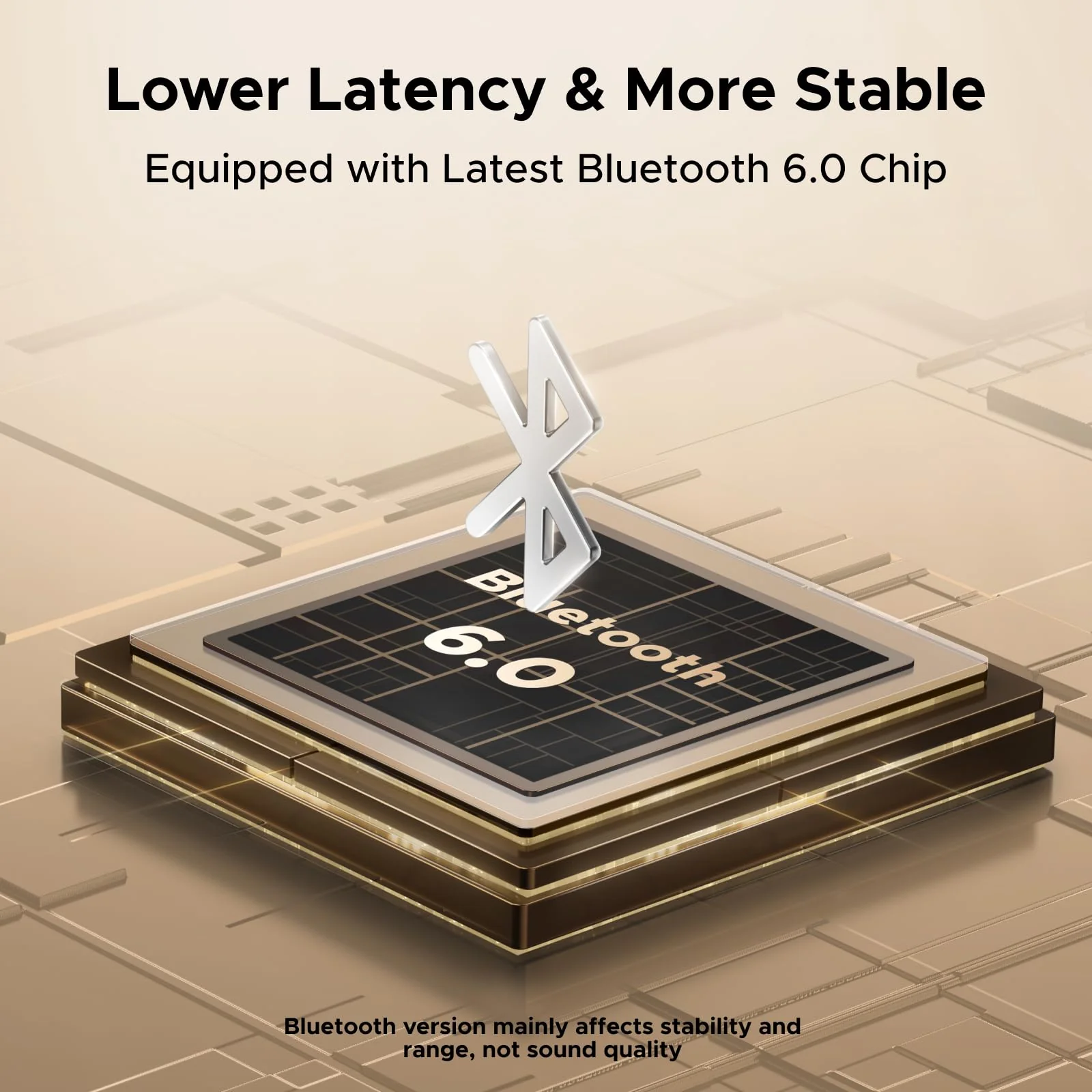
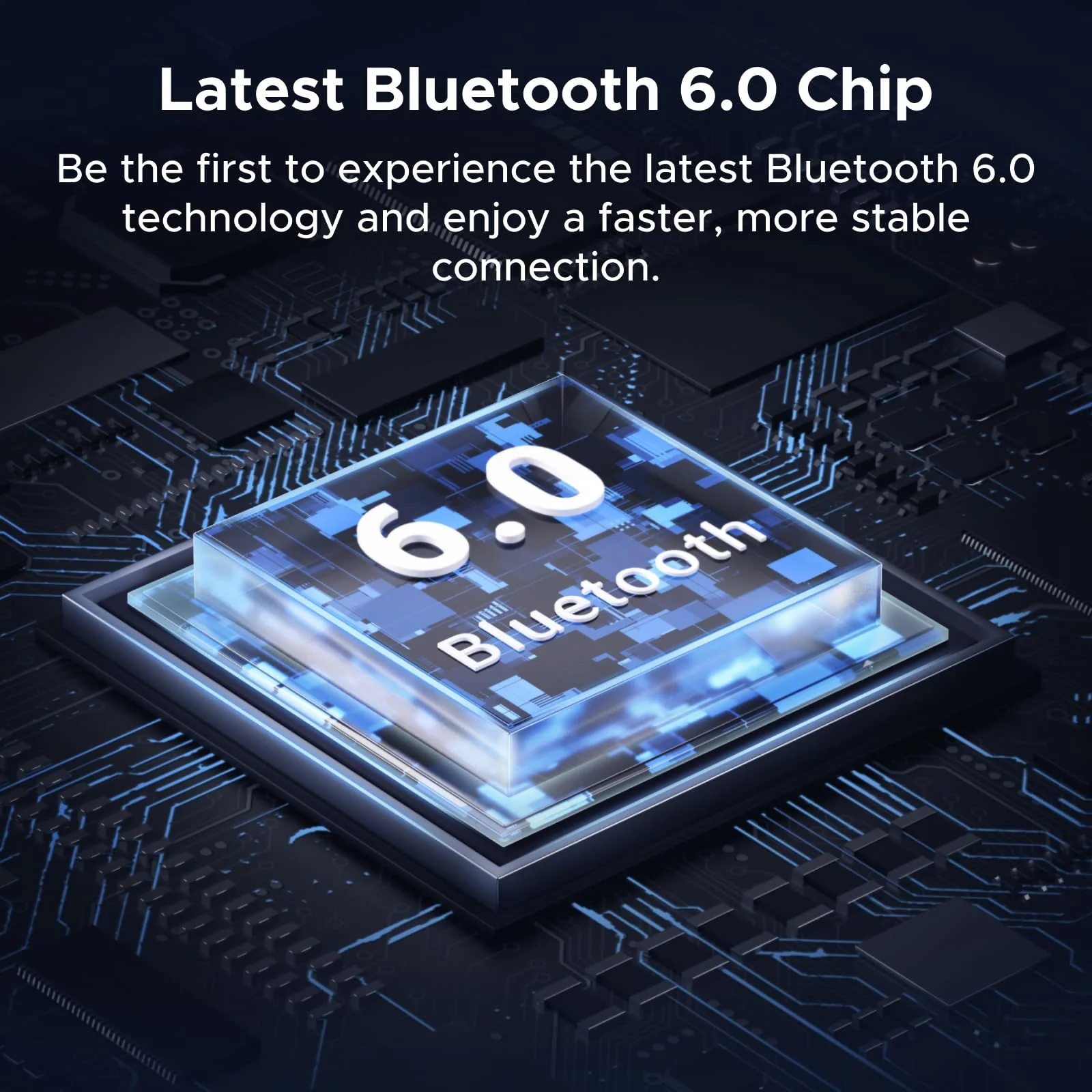
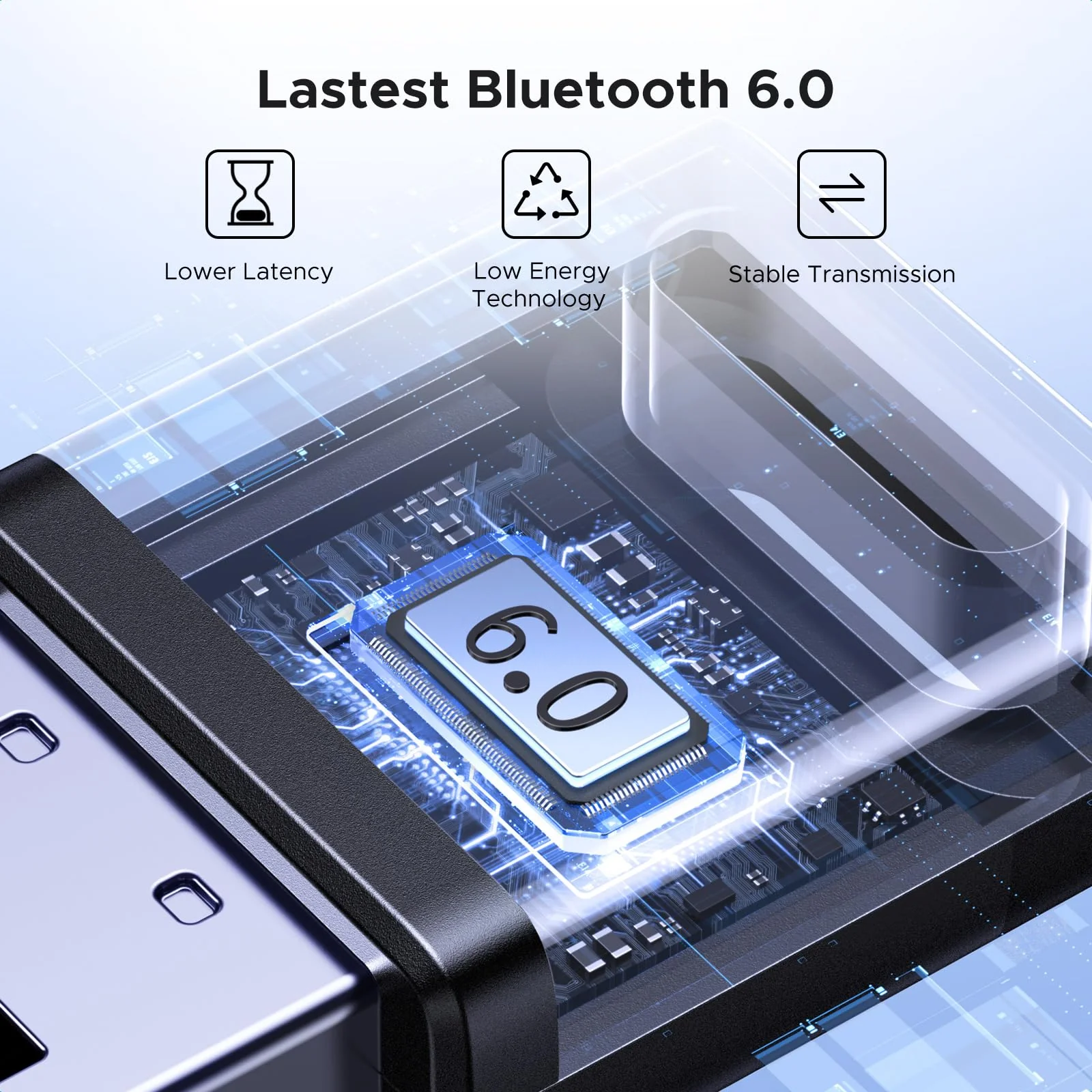
Bluetooth 6.0
How to pair?
How to control?
| Q1 | How to check if your phone supports LDAC? |
| A1 | Generally, phones with Android 8.0 or later support LDAC. iPhones only support SBC/AAC encoding and do not support LDAC. You can also check your phone’s user manual or consult the official manufacturer for confirmation. |
| Q2 | How to confirm whether LDAC is turned on in the product? |
| A2 | The product will prioritize LDAC by default. When playing audio, the indicator light will turn green. Some phones may need to manually turn on LDAC—please consult the phone manufacturer for the enabling steps. |
| Q3 | Why do we need to choose the bitrate? |
| A3 | LDAC has high requirements for connection distance and environment. Please select an appropriate bitrate on your phone based on the current conditions. For example, if there are obstructions nearby or the distance between the product and the phone is far, switch to a lower bitrate to ensure smooth audio playback without interruptions. |
| Q4 | What to do if the volume is too low after pairing? |
| A4 | Android phones: Settings > Bluetooth > Connected Bluetooth settings (UGREEN-BT505—note that Bluetooth names vary by product) > Enable "Volume Sync," then readjust the volume. iPhones: Settings > Sound & Haptics > Headphone Safety > Turn off "Reduce Loud Sounds," then readjust the volume. |
| Q5 | Does the iPhone/Galaxy series of mobile phones support automatic reconnection? |
| A5 | After initial pairing, the product will automatically reconnect to the last paired device upon startup. For optimal performance, ensure your phone's Bluetooth is enabled before powering on the device. Manual operation is required in two cases: 1. If pairing times out, briefly press the MFB button to re-enter pairing mode; 2. If the connection is lost due to manually disabled Bluetooth on the phone, manually reconnect by selecting the device name in your phone's Bluetooth list. |
Product Information
Product Information
Shipping & Returns
Shipping & Returns
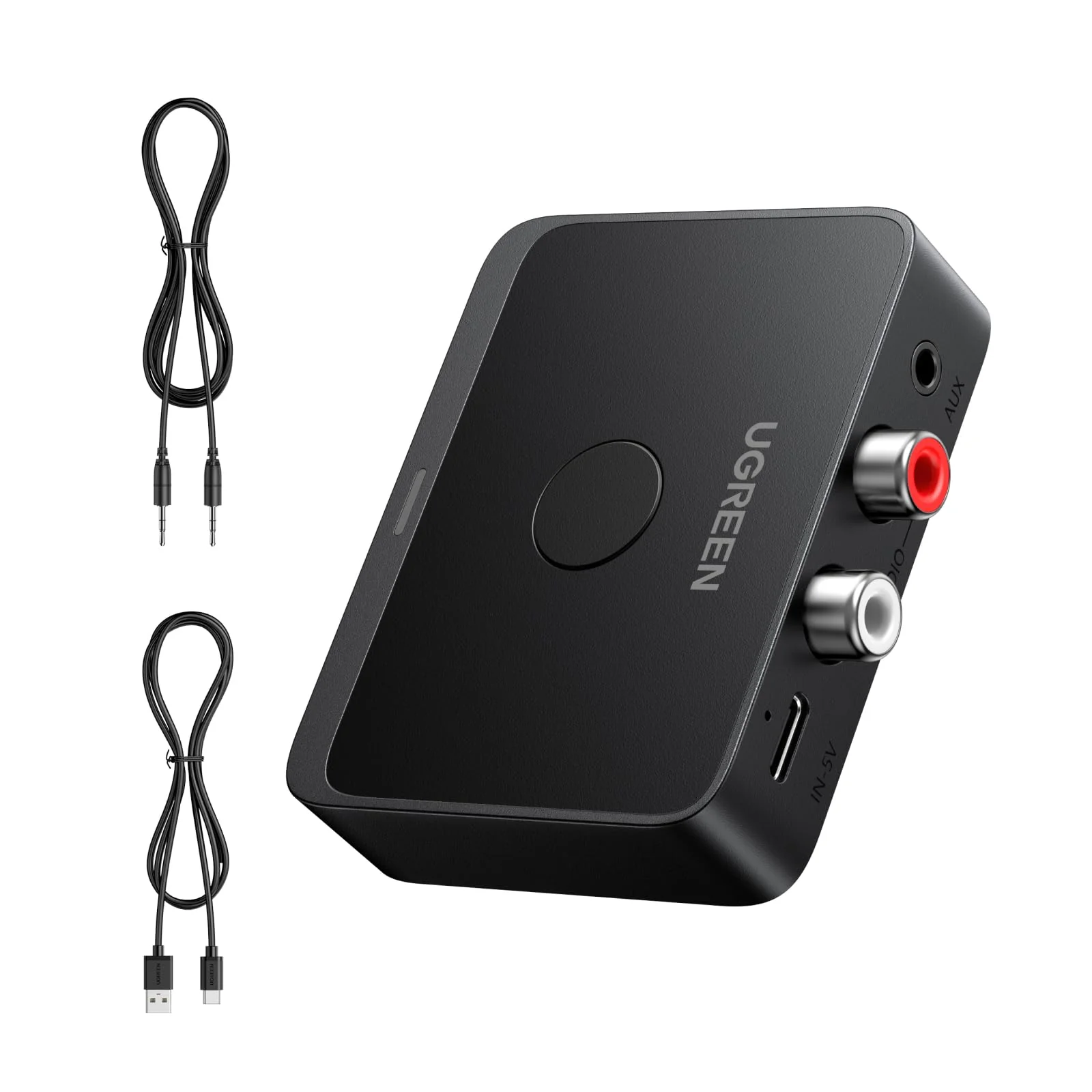


UGREEN Bluetooth 6.0 Receiver with LDAC Hi-Res Audio, Bluetooth Audio Adapter for Hi-Fi, 15H Playtime, Long Range, Dual Pairing, Wireless Adapter for Speakers/Home Stereo
LDAC Hi-Res Audio
Bluetooth 6.0
How to pair?
How to control?
| Q1 | How to check if your phone supports LDAC? |
| A1 | Generally, phones with Android 8.0 or later support LDAC. iPhones only support SBC/AAC encoding and do not support LDAC. You can also check your phone’s user manual or consult the official manufacturer for confirmation. |
| Q2 | How to confirm whether LDAC is turned on in the product? |
| A2 | The product will prioritize LDAC by default. When playing audio, the indicator light will turn green. Some phones may need to manually turn on LDAC—please consult the phone manufacturer for the enabling steps. |
| Q3 | Why do we need to choose the bitrate? |
| A3 | LDAC has high requirements for connection distance and environment. Please select an appropriate bitrate on your phone based on the current conditions. For example, if there are obstructions nearby or the distance between the product and the phone is far, switch to a lower bitrate to ensure smooth audio playback without interruptions. |
| Q4 | What to do if the volume is too low after pairing? |
| A4 | Android phones: Settings > Bluetooth > Connected Bluetooth settings (UGREEN-BT505—note that Bluetooth names vary by product) > Enable "Volume Sync," then readjust the volume. iPhones: Settings > Sound & Haptics > Headphone Safety > Turn off "Reduce Loud Sounds," then readjust the volume. |
| Q5 | Does the iPhone/Galaxy series of mobile phones support automatic reconnection? |
| A5 | After initial pairing, the product will automatically reconnect to the last paired device upon startup. For optimal performance, ensure your phone's Bluetooth is enabled before powering on the device. Manual operation is required in two cases: 1. If pairing times out, briefly press the MFB button to re-enter pairing mode; 2. If the connection is lost due to manually disabled Bluetooth on the phone, manually reconnect by selecting the device name in your phone's Bluetooth list. |
$39.73
UGREEN Bluetooth 6.0 Receiver with LDAC Hi-Res Audio, Bluetooth Audio Adapter for Hi-Fi, 15H Playtime, Long Range, Dual Pairing, Wireless Adapter for Speakers/Home Stereo—
$39.73
Product Information
Product Information
Shipping & Returns
Shipping & Returns
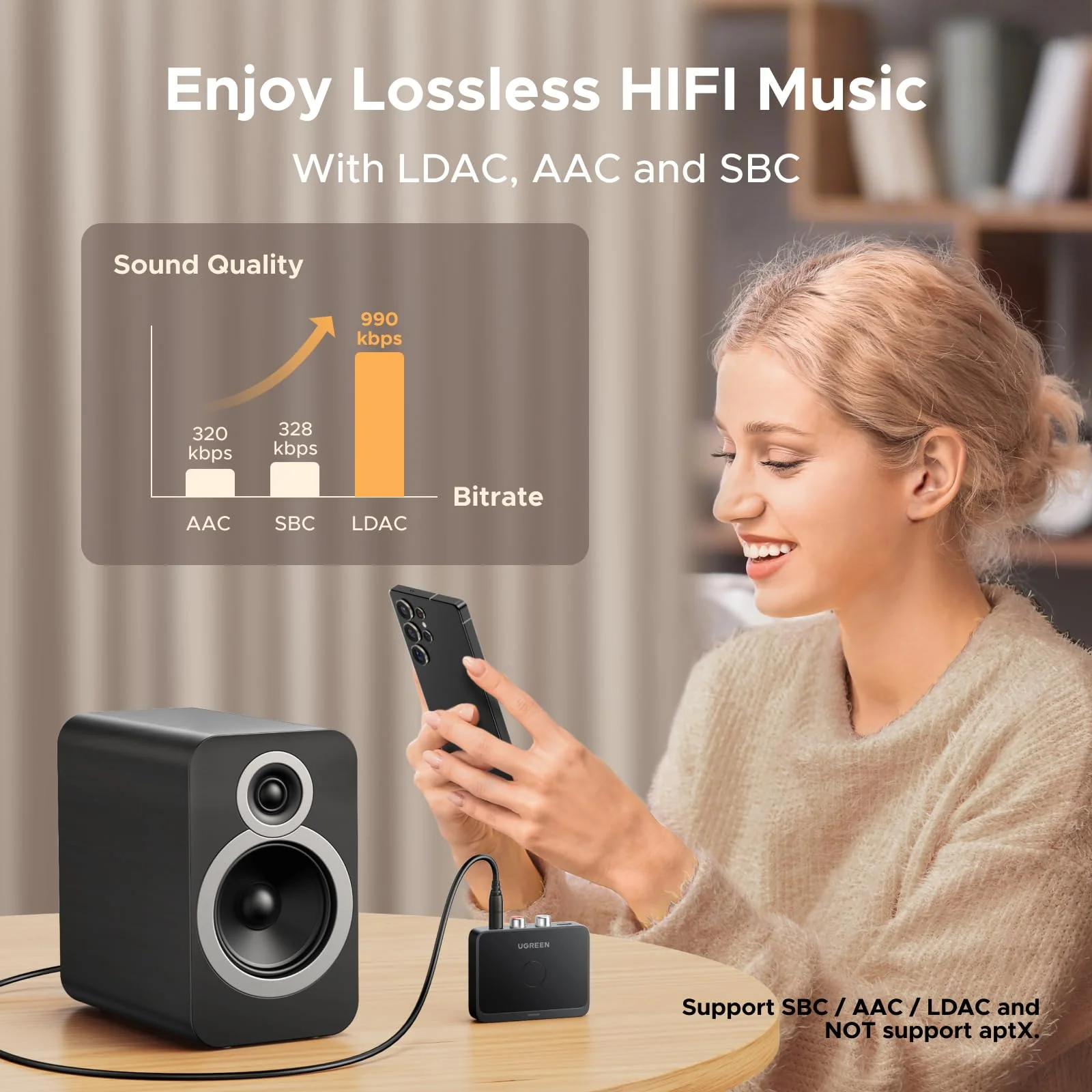
Description
LDAC Hi-Res Audio
Bluetooth 6.0
How to pair?
How to control?
| Q1 | How to check if your phone supports LDAC? |
| A1 | Generally, phones with Android 8.0 or later support LDAC. iPhones only support SBC/AAC encoding and do not support LDAC. You can also check your phone’s user manual or consult the official manufacturer for confirmation. |
| Q2 | How to confirm whether LDAC is turned on in the product? |
| A2 | The product will prioritize LDAC by default. When playing audio, the indicator light will turn green. Some phones may need to manually turn on LDAC—please consult the phone manufacturer for the enabling steps. |
| Q3 | Why do we need to choose the bitrate? |
| A3 | LDAC has high requirements for connection distance and environment. Please select an appropriate bitrate on your phone based on the current conditions. For example, if there are obstructions nearby or the distance between the product and the phone is far, switch to a lower bitrate to ensure smooth audio playback without interruptions. |
| Q4 | What to do if the volume is too low after pairing? |
| A4 | Android phones: Settings > Bluetooth > Connected Bluetooth settings (UGREEN-BT505—note that Bluetooth names vary by product) > Enable "Volume Sync," then readjust the volume. iPhones: Settings > Sound & Haptics > Headphone Safety > Turn off "Reduce Loud Sounds," then readjust the volume. |
| Q5 | Does the iPhone/Galaxy series of mobile phones support automatic reconnection? |
| A5 | After initial pairing, the product will automatically reconnect to the last paired device upon startup. For optimal performance, ensure your phone's Bluetooth is enabled before powering on the device. Manual operation is required in two cases: 1. If pairing times out, briefly press the MFB button to re-enter pairing mode; 2. If the connection is lost due to manually disabled Bluetooth on the phone, manually reconnect by selecting the device name in your phone's Bluetooth list. |